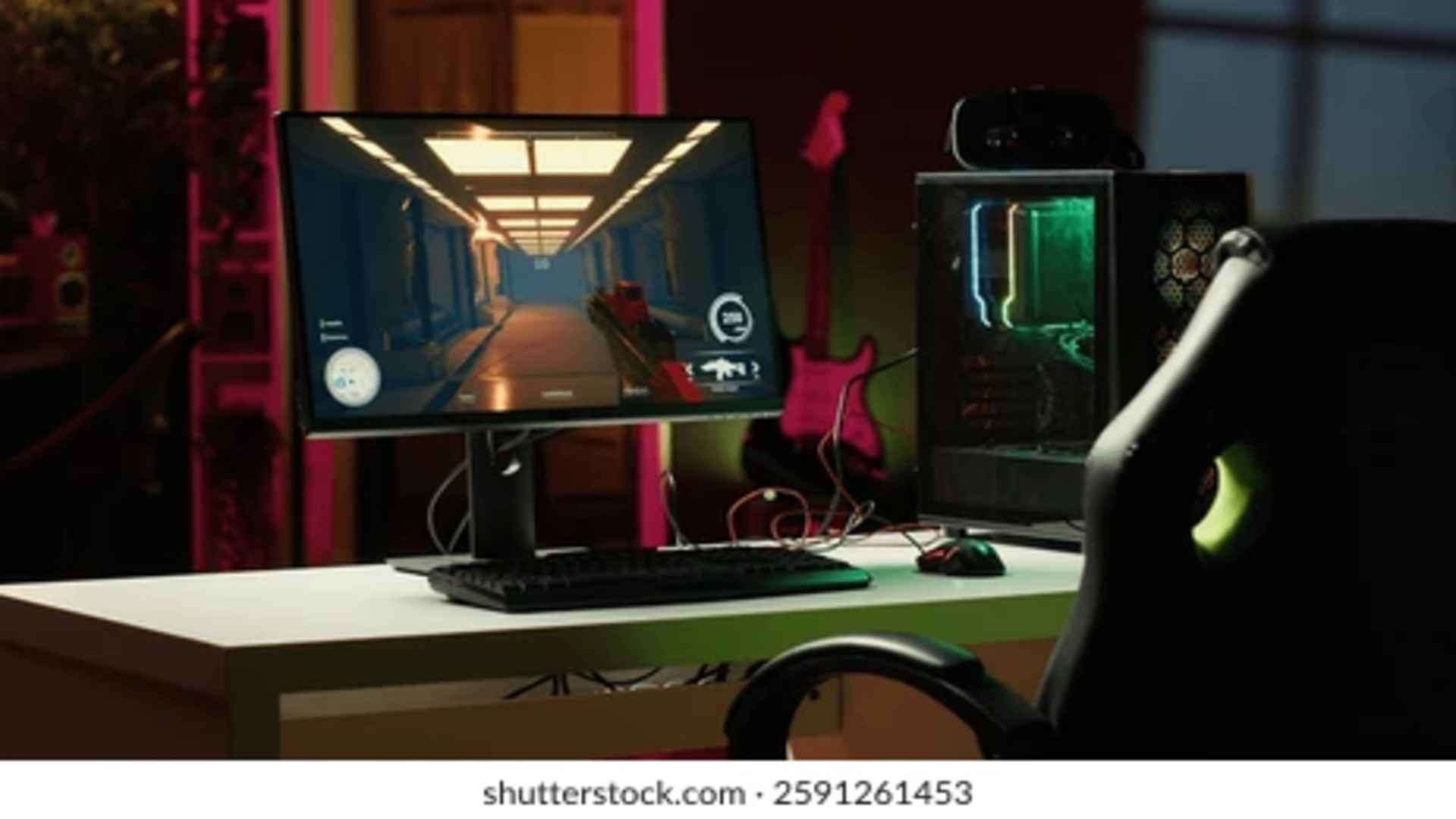
While the DualSense controller offers immersive haptic feedback, many gamers prefer the precision of a traditional keyboard and mouse setup for specific PlayStation 5 titles. Sony has built native support for USB and Bluetooth peripherals directly into the console software, allowing players to easily connect their preferred input devices. Understanding how to set up these peripherals and manage system settings ensures a smooth transition to desktop-style gaming on your console.
Connecting Wired and Wireless Peripherals to PS5
Setting up a wired keyboard and mouse on the PS5 is as simple as plugging the devices directly into the console USB ports. The system will automatically detect the hardware and display an icon indicating that a new input device is connected. For wireless devices utilizing a USB dongle, plugging the receiver into an available port achieves the exact same result instantly.
If you prefer using Bluetooth peripherals, you can easily pair them through the system settings menu. Navigate to Settings, select Accessories, and enter the General tab to find Bluetooth Accessories. Put your keyboard or mouse into pairing mode so the console can recognize and establish a stable wireless connection.
Adjusting Keyboard and Mouse Settings on PS5
Once your peripherals are connected, fine-tuning their settings will significantly improve your overall gameplay experience. Navigating back to the Accessories menu allows you to modify pointer speed, key repeat rate, and keyboard layout options. Adjusting these parameters ensures that cursor movement feels natural and responsive when navigating game menus.
You can also customize language layouts and assign specific functions depending on your personal preferences. Lowering or increasing the pointer speed helps align mouse sensitivity with your target precision. Taking a few minutes to configure these options prevents input latency and erratic camera movements during intense gaming sessions.
Navigating Games with Native Peripheral Support
It is important to note that keyboard and mouse functionality depends entirely on whether individual game developers enable support for their titles. Major multiplayer titles like Call of Duty, Fortnite, and Warframe offer robust native support right out of the box. When launching a supported title, the game typically switches control schemes automatically to accommodate your connected devices.
In social games and massive multiplayer titles like Final Fantasy XIV, using a keyboard makes in-game chat vastly superior to using a controller. Typing out messages or executing complex keybind shortcuts saves significant time during group activities. Players can also navigate clunky inventory interfaces much faster by utilizing direct mouse clicks.
Understanding Matchmaking and Compatibility Rules
Before jumping into competitive online matches with a keyboard and mouse, players should be aware of platform balancing rules. Many multiplayer games group keyboard and mouse users together or place them in PC lobbies to maintain fair competition. Understanding these matchmaking restrictions prevents unexpected spikes in match difficulty when playing competitively.
Additionally, single-player games without developer-enabled support will not respond to keyboard inputs regardless of console settings. Always check the game options menu or developer guides to confirm whether keyboard and mouse controls are fully integrated. Utilizing native support guarantees optimal performance without risking account penalties on online platforms.